









































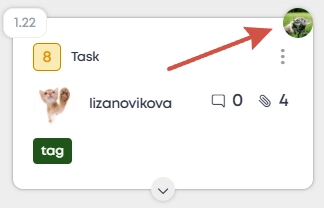
A signature on a card is a way to visually mark that a specific participant has reviewed, checked, or approved a task.
The signature is displayed as the user's avatar in the top right corner of the card.
What is it for?
The signature function serves as a simple and clear confirmation of involvement. It is useful when a task requires:
Verification of completed work.
Approval of results.
Confirmation of having reviewed the information on the card.
Signatures help the team quickly see who has already participated in the process for a specific task.
How to add or remove a signature?
Signature management is performed only through the card's action menu.
Hover the cursor over the desired card and click on the three dots in its top right corner.
In the menu that opens, select the "Sign task" item.
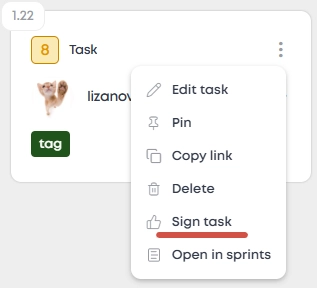
After clicking, the avatar will appear on the task card.
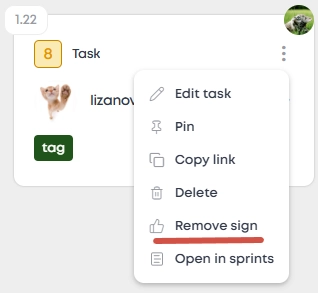
Removing a signature is also done through the task card menu.
Click on the three-dot icon in the top right corner of the task card.
Click "Remove signature".
To see who signed:
Hover the cursor over any avatar in the corner of the card to see the user's name.
Important rules and limitations
Limit: Up to 4 signatures are displayed on a single card. If there are more signatures, you need to click the "+" icon to view them all.
Does not affect status: A signature does not change the task's progress or move the card to another column. It is solely a marker of a person's involvement.
Access: Only a board member who has access to this function in the project can sign a task. Access is configured by the project's author or editor.